Keyboard Shortcuts
Overview
The Smart ETL editing canvas in Guandata BI provides a rich set of keyboard shortcuts and a shortcut panel to improve operating efficiency and simplify ETL editing workflows. This article explains how to use shortcuts in the ETL canvas, how to move the canvas, and how to use the thumbnail navigator for more efficient editing.
Shortcut Reference
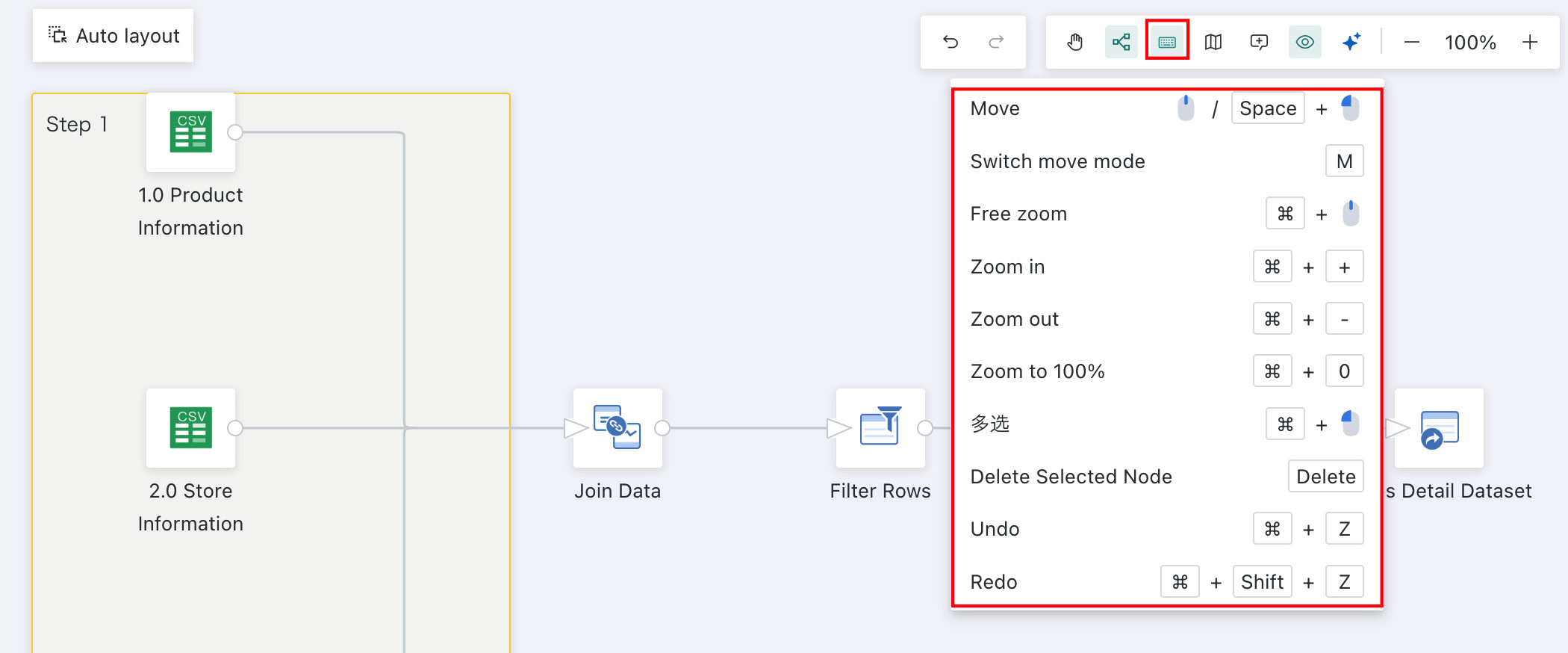
On the Data Center > Smart ETL page, select the ETL you want to edit, click the edit button to enter the editor, and then click the Operation Guide entry in the upper-right corner to quickly view all shortcut descriptions.
Move the Canvas
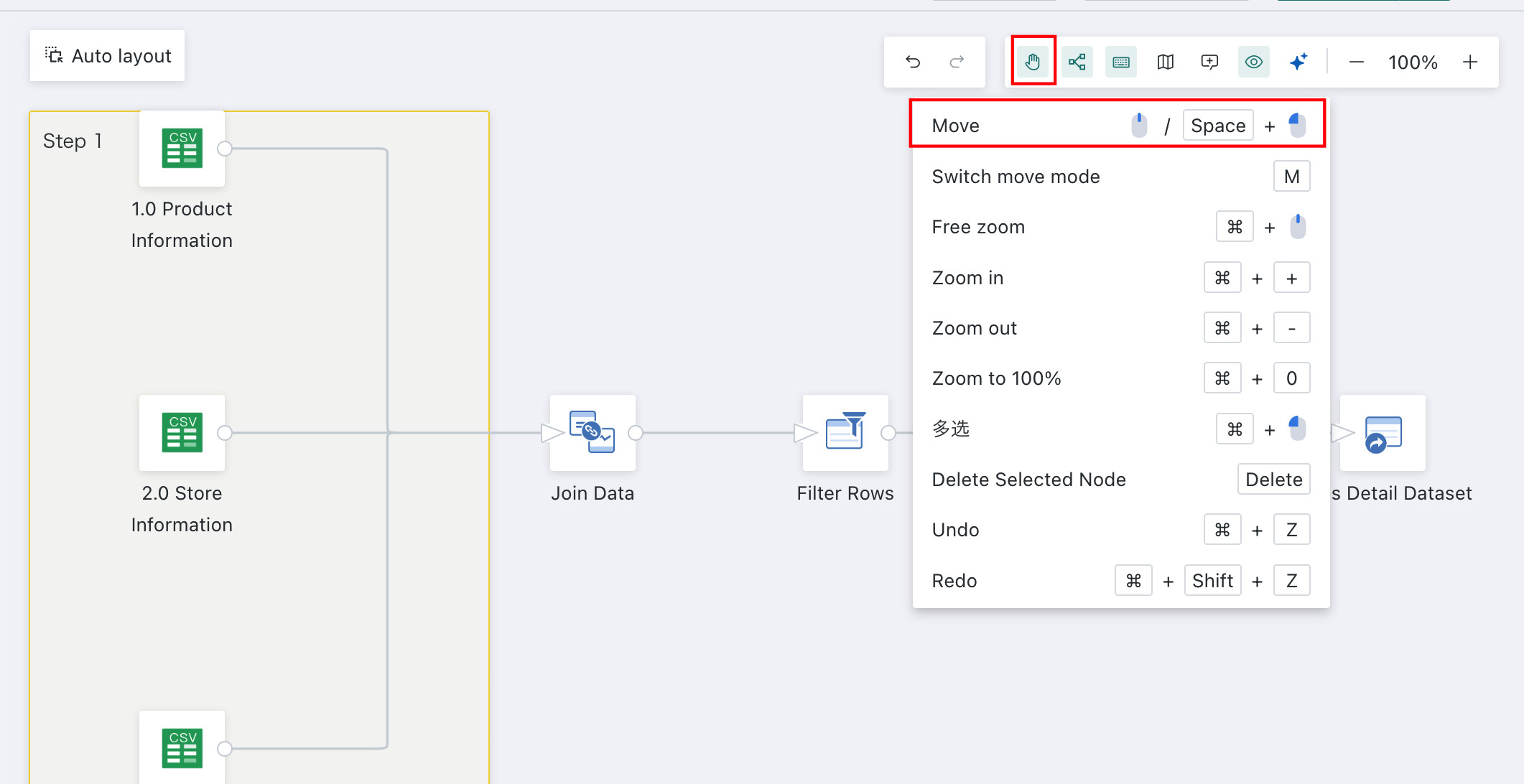
Method 1: Click the gesture button in the upper-right corner. The mouse pointer changes to a hand icon, which means canvas movement is activated. You can then move the canvas using the control panel or the left mouse button. Click the gesture button again to turn off canvas movement.
The shortcut key M has the same function as the gesture button.
Method 2: Press the spacebar and hold the left mouse button to move the canvas. When canvas movement is already active, the spacebar does not take effect.
Thumbnail Navigator
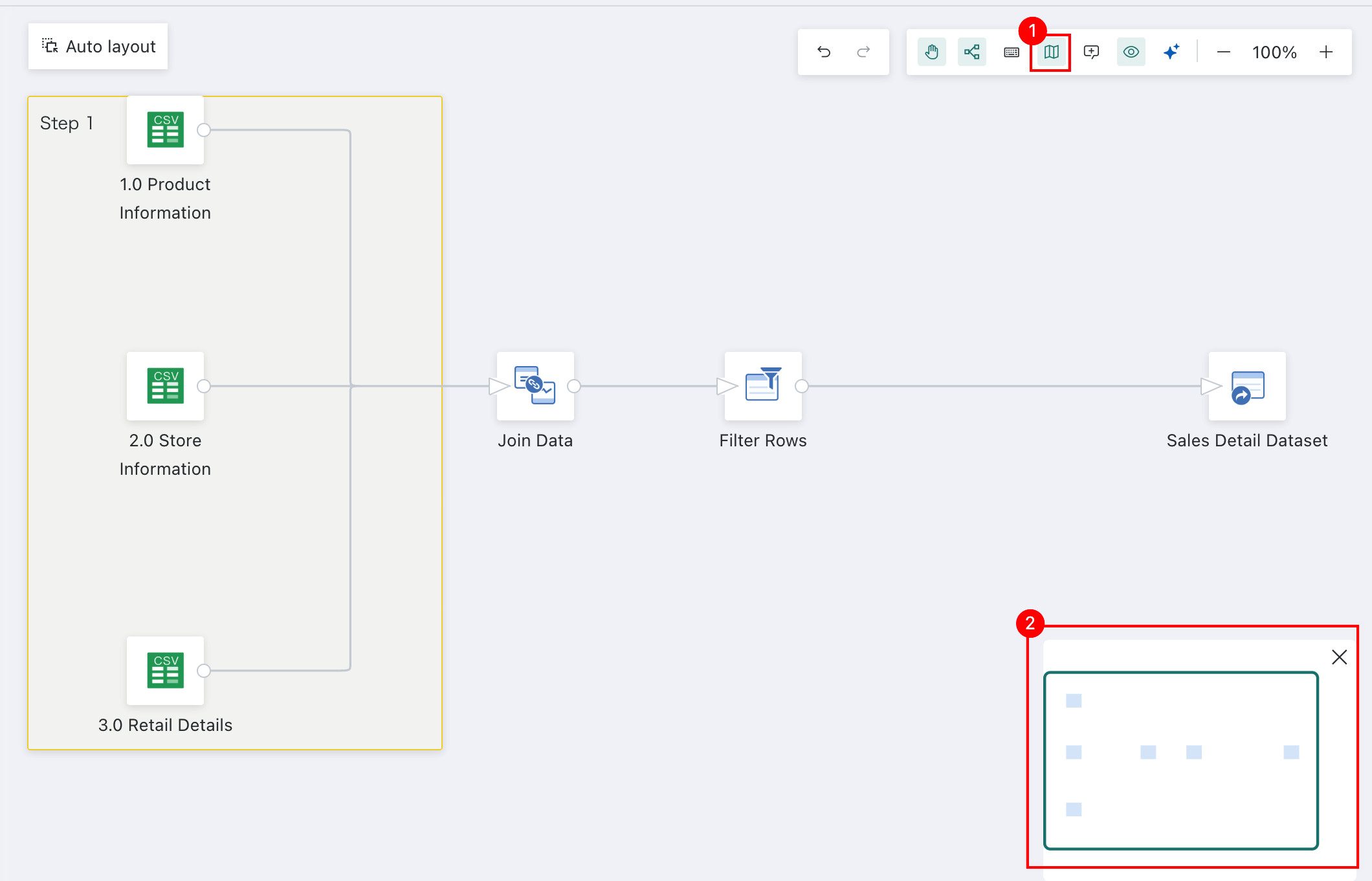
The ETL canvas supports navigation through the Thumbnail feature. Click the Thumbnail icon in the upper-right corner, then drag the positioning box in the lower-right corner of the thumbnail to locate an operator.